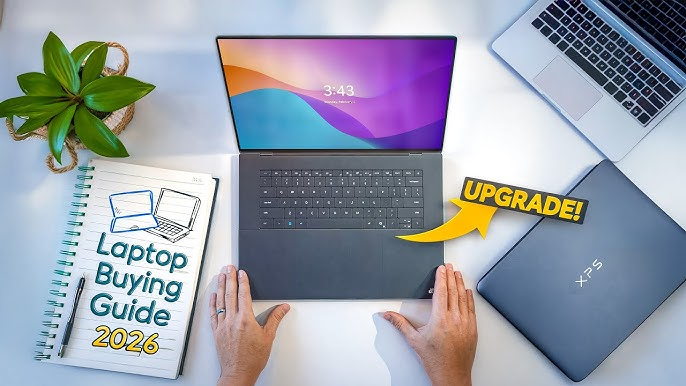
Buying a laptop can be surprisingly complicated. There are hundreds of models, different processors, confusing specifications, multiple operating systems, and huge differences in price. A laptop that is perfect for a college student may be completely unsuitable for a video editor, while a powerful gaming laptop may be unnecessary for someone who mainly browses the web and uses Microsoft Office
The best laptop is not necessarily the most expensive one. It is the laptop that provides the right combination of performance, battery life, display quality, portability, durability, and features for your particular needs and budget.
This laptop buying guide explains everything you need to know before purchasing a new computer. Whether you are looking for a budget laptop under $500, a mid-range productivity machine, a premium ultrabook, or a powerful gaming and creator laptop, this guide will help you make a smarter decision.
What Should You Look for When Buying a Laptop?
Before comparing brands and models, identify what you actually need your laptop to do.
The most important factors are:
- Processor performance
- RAM capacity
- SSD storage
- Display quality
- Battery life
- Graphics performance
- Keyboard and trackpad
- Weight and portability
- Build quality
- Operating system
- Ports and connectivity
- Upgradeability
- Warranty and after-sales support
- Price
A laptop with a powerful processor but poor battery life may not be ideal for a student. Similarly, a laptop with a beautiful OLED display may not be the best choice if your priority is maximum gaming performance.
The right specifications depend on your workload.
Quick Recommendation
| User Type | Recommended RAM | Storage | Graphics | Ideal Laptop |
|---|---|---|---|---|
| Basic user | 8GB | 256GB SSD | Integrated | Budget laptop |
| Student | 8–16GB | 512GB SSD | Integrated | Thin and portable |
| Office professional | 16GB | 512GB SSD | Integrated | Business/ultrabook |
| Programmer | 16GB | 512GB–1TB SSD | Integrated/dedicated | Performance laptop |
| Content creator | 16–32GB | 1TB SSD | Dedicated GPU | Creator laptop |
| Gamer | 16–32GB | 1TB SSD | Dedicated GPU | Gaming laptop |
| Professional workstation | 32GB+ | 1TB+ SSD | High-end dedicated GPU | Workstation |
1. Decide What Type of Laptop You Need
The first step is choosing the right category.
Different laptop designs are optimized for different users.
Traditional Clamshell Laptop
A traditional laptop has a screen, keyboard, touchpad, and hinge.
These are usually the best all-rounders because they offer a good balance between price, performance, portability, and features.
They are suitable for:
- Students
- Office workers
- Home users
- Freelancers
- Programmers
- Business users
If you don’t need a touchscreen or tablet functionality, a traditional laptop is often the safest choice.
Ultrabook and Thin-and-Light Laptop
Thin-and-light laptops prioritize portability.
They typically feature:
- Lightweight construction
- Long battery life
- Efficient processors
- High-quality displays
- Slim designs
- Fast SSD storage
These laptops are excellent for people who travel frequently or carry their computers around campus or an office.
The main disadvantage is that extremely thin laptops may sacrifice upgradeability, cooling capacity, ports, or graphics performance.
2-in-1 Convertible Laptop
A 2-in-1 laptop has a hinge that allows the screen to fold backward.
Depending on the model, it can function as:
- Laptop
- Tablet
- Tent
- Presentation device
2-in-1 laptops are particularly useful for students, designers, travelers, and professionals who want touchscreen functionality.
However, you often pay more for the convertible design.
Gaming Laptop
Gaming laptops are designed for demanding graphics workloads.
They generally include:
- High-performance CPUs
- Dedicated graphics cards
- High-refresh-rate displays
- Larger cooling systems
- More powerful chargers
- Gaming-oriented keyboards
They are also useful for:
- 3D rendering
- Video editing
- CAD
- AI workloads
- Game development
- Engineering applications
The disadvantages are increased weight, fan noise, higher power consumption, and shorter battery life during demanding workloads.
Creator Laptop
Creator laptops are designed for photographers, video editors, designers, musicians, architects, and other professionals.
They usually emphasize:
- Color-accurate displays
- Powerful processors
- Dedicated GPUs
- Large SSDs
- Plenty of RAM
A creator laptop can sometimes be a better option than a gaming laptop for professional work because display quality and color accuracy are often prioritized.
Business Laptop
Business laptops focus on reliability, security, durability, keyboards, connectivity, and long-term usability.
Common features include:
- Strong chassis
- Excellent keyboards
- Business security features
- Fingerprint readers
- IR cameras
- Better docking support
- Long warranties on some models
They are ideal for professionals who use their laptop for work every day.
2. Choosing the Right Laptop Processor
The processor, or CPU, is one of the most important components in a laptop.
It handles tasks such as:
- Running applications
- Web browsing
- Office software
- Programming
- Data processing
- Video editing
- Gaming calculations
- Multitasking
Modern laptop processors come from several major platforms, including Intel, AMD, Apple, and Qualcomm.
Intel Processors
Intel offers processors across multiple performance levels.
Modern Intel laptop families use different naming structures depending on the generation and product line, so buyers should pay attention to the actual processor model rather than assuming that a familiar brand name automatically means higher performance.
For example, two processors carrying similar branding can have very different power limits, core configurations, and performance characteristics.
Intel Is a Good Choice For:
- Office work
- Business laptops
- Programming
- Gaming
- General productivity
- Professional workloads
AMD Ryzen Processors
AMD Ryzen processors are widely used in laptops ranging from inexpensive machines to high-performance gaming and workstation systems.
Ryzen processors are particularly competitive in:
- Multicore performance
- Multitasking
- Gaming
- Productivity
- Battery-efficient systems
As with Intel, don’t choose a laptop simply because it says “Ryzen.” Check the specific processor generation and model.
Apple Silicon
Apple’s laptop processors are designed by Apple and used in MacBook systems.
Apple silicon focuses heavily on:
- Performance per watt
- Battery efficiency
- Integrated graphics
- Media processing
- Quiet operation
MacBooks can provide excellent battery life and performance, particularly for users already comfortable with macOS.
However, software compatibility should be checked before purchasing if you rely on specialized Windows-only applications.
Qualcomm Snapdragon and ARM-Based Windows Laptops
ARM-based Windows laptops have become increasingly relevant because of their emphasis on efficiency and long battery life.
Their advantages can include:
- Excellent battery endurance
- Low power consumption
- Quiet operation
- Lightweight designs
- Always-connected capabilities on some models
The biggest consideration is application compatibility. Most everyday applications work well, but users relying on specialized software, older applications, drivers, or certain professional tools should verify compatibility.
3. How Many CPU Cores Do You Need?
CPU cores allow a processor to work on multiple tasks.
For everyday users, you don’t need to obsess over core counts.
Basic Use
For:
- Web browsing
- Microsoft Office
- Streaming
- Video calls
A modern entry-level processor is generally sufficient.
Productivity
For:
- Heavy multitasking
- Programming
- Large spreadsheets
- Business applications
Choose a modern mid-range processor.
Professional Work
For:
- Video editing
- 3D rendering
- Software development
- Large datasets
A higher-performance processor with more cores can provide meaningful benefits.
Gaming
Gaming performance depends heavily on the GPU as well as the CPU.
A balanced CPU/GPU combination is more important than simply buying the processor with the highest specification.
4. How Much RAM Do You Need?
RAM is temporary working memory used by applications.
More RAM allows you to keep more applications and browser tabs open without relying heavily on slower storage.
8GB RAM
8GB is the basic level I would recommend for a new laptop intended for everyday use.
Suitable for:
- Web browsing
- Office work
- Streaming
- Light schoolwork
However, 8GB can become restrictive if you frequently multitask.
16GB RAM
For most buyers, 16GB is the sweet spot.
It is recommended for:
- Students
- Professionals
- Programmers
- Multitaskers
- Content creators
- General power users
If your budget allows it, choosing 16GB instead of 8GB can significantly extend the useful life of a laptop.
32GB RAM
32GB is useful for demanding workloads.
Consider it for:
- Professional video editing
- 3D rendering
- Large programming projects
- Virtual machines
- Engineering applications
- Heavy multitasking
64GB or More
Most ordinary users don’t need this much memory.
It makes sense for specialized professional workloads such as:
- Large-scale video production
- Scientific computing
- Virtualization
- Advanced 3D work
- Large datasets
For typical laptop buyers, spending money on 64GB instead of improving another component may not provide meaningful benefits.
5. SSD vs HDD: Which Storage Should You Choose?
Storage determines how much data your laptop can hold.
Modern laptops should generally use an SSD rather than a traditional hard disk drive.
SSD
Solid-state drives are significantly faster than traditional mechanical hard drives.
Advantages include:
- Faster boot times
- Faster application loading
- Better responsiveness
- No moving parts
- Lower noise
- Lower power consumption
For a new laptop, an SSD should be considered essential.
HDD
Hard drives use spinning magnetic disks.
Their biggest advantage is low cost per gigabyte.
However, they are:
- Slower
- Heavier
- Noisier
- More vulnerable to physical shock
They are increasingly uncommon as the primary storage option in modern thin laptops.
6. How Much Storage Do You Need?
256GB SSD
256GB is acceptable for:
- Basic office work
- Web browsing
- Cloud storage users
But it can become cramped quickly after installing applications, games, and storing photos or videos.
512GB SSD
For most people, 512GB is the recommended starting point.
It provides enough room for:
- Applications
- Documents
- Photos
- School projects
- Work files
- Some games
1TB SSD
1TB is ideal for:
- Gamers
- Photographers
- Video editors
- Developers
- Professionals
- People who store large media libraries
2TB+
Large storage capacities make sense for professional creators and users who work with large files.
If your laptop supports external SSDs, buying a smaller internal drive and adding external storage later can also be a cost-effective strategy.
7. Laptop Display: What Specifications Actually Matter?
The display is one of the components you interact with constantly.
Don’t judge a screen only by its resolution.
Important specifications include:
- Resolution
- Panel technology
- Brightness
- Refresh rate
- Color coverage
- Contrast
- Viewing angles
- Response time
- Touch support
8. 1080p vs 1440p vs 4K
Full HD / 1080p
1080p remains a practical resolution for many laptops.
Advantages:
- Lower cost
- Lower power consumption
- Good performance
- Suitable for most office tasks
1440p / 2K-Class Displays
Higher-resolution screens provide sharper images.
They are particularly attractive for:
- Productivity
- Creative work
- Gaming
- Photo editing
However, they require more graphics processing power than 1080p at native resolution.
4K Displays
4K provides extremely high pixel density.
It can be useful for:
- Photo editing
- Video production
- Professional design
- High-resolution media
The drawbacks include higher cost and potentially higher power consumption.
For a 13- to 16-inch laptop, a good-quality 1440p-class display can often provide an excellent balance between sharpness and efficiency.
9. IPS vs OLED Displays
IPS
IPS LCD panels are popular because they offer:
- Good viewing angles
- Accurate colors
- Reliable performance
- Lower cost
A good IPS panel remains an excellent choice.
OLED
OLED displays can provide:
- Excellent contrast
- Deep blacks
- Vibrant colors
- Fast response times
- Premium image quality
They are particularly attractive for movies, photo editing, and creative work.
However, OLED laptops can cost more, and buyers who keep static content on screen for very long periods should understand the potential for image retention or burn-in depending on the panel and usage.
10. What Refresh Rate Should You Choose?
Refresh rate determines how many times the screen can update per second.
Common laptop displays include:
- 60Hz
- 90Hz
- 120Hz
- 144Hz
- 165Hz
- 240Hz and higher
For office work, 60Hz is functional.
A 90Hz or 120Hz display can make scrolling and animations feel smoother.
Gamers should consider higher refresh rates, especially when paired with a GPU capable of delivering high frame rates.
11. How Bright Should a Laptop Screen Be?
Brightness is measured in nits.
A brighter screen is particularly useful outdoors or in bright rooms.
For indoor productivity, a moderately bright display may be sufficient.
If you frequently work outdoors, look for a laptop with a significantly brighter panel and good anti-reflective characteristics.
12. Do You Need a Dedicated Graphics Card?
The graphics processing unit, or GPU, handles visual workloads.
There are two main types:
- Integrated graphics
- Dedicated graphics
Integrated Graphics
Integrated graphics are built into the processor or share system resources.
They are usually sufficient for:
- Office work
- Browsing
- Streaming
- Programming
- Basic photo editing
- Casual gaming
They also consume less power than many dedicated GPUs.
Dedicated Graphics
Dedicated GPUs have their own graphics memory and are designed for demanding workloads.
They are recommended for:
- Modern gaming
- 3D rendering
- Professional video editing
- CAD
- 3D modeling
- AI workloads
- Game development
NVIDIA and AMD are major suppliers of dedicated laptop graphics.
13. How Much GPU Power Do You Need?
Casual Gaming
An entry-level dedicated GPU or capable integrated graphics may be sufficient depending on the games and resolution.
Mainstream Gaming
A mid-range dedicated GPU is generally a better choice.
It provides enough performance for modern games while keeping the laptop’s size and price manageable.
High-End Gaming
High-performance GPUs are appropriate for users targeting:
- High frame rates
- High resolutions
- Ray tracing
- Advanced graphical settings
- Competitive gaming
Remember that GPU model alone doesn’t tell the whole story. Laptop GPU performance can vary depending on power limits, cooling, memory configuration, and the specific laptop design.
14. Battery Life: Don’t Trust the Number Blindly
Battery life is one of the most misunderstood laptop specifications.
Manufacturers often advertise battery estimates under specific test conditions.
Real-world battery life depends on:
- Screen brightness
- Display resolution
- Refresh rate
- Processor
- Background applications
- Wi-Fi usage
- Video playback
- Web browsing
- Gaming
- Battery capacity
- Operating system
A laptop advertised for a certain number of hours may deliver substantially different results depending on how you use it.
For frequent travelers, prioritize efficiency and battery capacity over raw processor performance.
15. Laptop Operating Systems
The operating system controls how you interact with the computer and determines which applications you can use.
The major choices are:
- Windows
- macOS
- ChromeOS
- Linux
Windows
Windows is the most flexible choice for many laptop buyers.
Advantages include:
- Huge software ecosystem
- Wide hardware selection
- Excellent gaming support
- Broad peripheral compatibility
- Many price options
Windows is particularly suitable for gamers, business users, students, and people who need compatibility with specialized software.
macOS
macOS is Apple’s desktop operating system.
It is known for:
- Clean interface
- Strong integration with Apple devices
- Excellent media applications
- Efficient hardware/software integration
- High-quality laptop hardware
MacBooks are popular among creators, developers, professionals, and general users.
Before buying one, make sure your required software is compatible with macOS.
ChromeOS
ChromeOS is designed around Google’s ecosystem and web applications.
Chromebooks are usually:
- Affordable
- Simple
- Lightweight
- Easy to manage
- Battery efficient
They work particularly well for:
- Web browsing
- Google Workspace
- Education
- Streaming
- Basic productivity
They are less suitable for specialized professional applications that require Windows or macOS.
Linux
Linux is an excellent option for technical users and developers.
Advantages include:
- Flexibility
- Open-source ecosystem
- Customization
- Developer tools
- Wide range of distributions
However, hardware compatibility and application support should be checked before buying.
16. Laptop Keyboard and Trackpad Matter More Than You Think
Specifications aren’t everything.
If you spend several hours typing every day, keyboard quality becomes extremely important.
Look for:
- Comfortable key travel
- Good key spacing
- Reliable backlighting
- Firm keyboard deck
- Accurate layout
The trackpad should provide:
- Smooth tracking
- Accurate gestures
- Reliable palm rejection
- Good clicking response
A laptop with slightly lower benchmark performance but an excellent keyboard can be a better productivity machine than a faster laptop with a poor typing experience.
17. Ports and Connectivity
Modern thin laptops sometimes sacrifice ports for portability.
Before buying, consider whether you need:
- USB-A
- USB-C
- Thunderbolt or equivalent high-speed connectivity
- HDMI
- Ethernet
- SD card reader
- Headphone jack
USB-C is particularly useful because it can support charging, displays, storage devices, docking stations, and other accessories depending on the laptop’s implementation.
Photographers and video creators should pay special attention to SD card support.
Gamers and professionals using external monitors should check display-output capabilities.
18. Webcam and Speakers
Video conferencing has made webcam quality much more important.
Check:
- Camera resolution
- Image quality
- Microphone quality
- Privacy shutter
- Low-light performance
For frequent meetings, a good webcam and microphone can be more valuable than a small increase in processor performance.
Speakers also matter if you frequently watch movies, attend meetings, or listen to music without headphones.
19. Build Quality and Durability
A laptop is a portable device, so construction quality matters.
Premium laptops may use:
- Aluminum
- Magnesium alloys
- Carbon fiber
- Reinforced plastics
Budget models often use plastic.
Plastic isn’t automatically bad. A well-designed plastic laptop can be durable and affordable.
Look at:
- Hinge strength
- Keyboard flex
- Chassis rigidity
- Lid durability
- Repairability
- Warranty coverage
20. Laptop Buying Guide by Budget
Now let’s look at what you should expect at different price levels.
Prices vary considerably by country, sales, specifications, and brand, so use these categories as general buying guidance rather than fixed price rules.
Budget Laptops
Budget laptops are designed for people who need basic computing without spending a lot.
Recommended Specifications
- Modern entry-level CPU
- 8GB RAM minimum
- 256GB SSD minimum
- Full HD display
- Integrated graphics
- Good battery life
Best For
- Students
- Web browsing
- Office work
- Online classes
- Streaming
What to Avoid
Avoid spending money on unnecessary premium features while accepting:
- 4GB RAM
- Tiny storage
- Slow processors
- Low-resolution displays
A cheap laptop isn’t a bargain if it becomes frustrating to use after a year.
Mid-Range Laptops
For many people, the mid-range category provides the best value.
Recommended Specifications
- Modern mid-range CPU
- 16GB RAM
- 512GB SSD
- Full HD or higher display
- Good battery life
- Quality keyboard
- Integrated or entry-level dedicated graphics
Best For
- Professionals
- College students
- Programmers
- Freelancers
- Business users
- General power users
This is where you can often find the best balance between price and performance.
Premium Laptops
Premium laptops focus on overall experience.
They may offer:
- Premium materials
- High-resolution OLED displays
- Excellent keyboards
- Powerful processors
- Large batteries
- Advanced speakers
- Better webcams
- Premium design
Best For
- Executives
- Professionals
- Frequent travelers
- Creators
- Users who value design and build quality
However, premium doesn’t automatically mean better value.
Sometimes you are paying for design, materials, branding, or a premium display rather than dramatically higher performance.
Gaming Laptops
Gaming laptops require a different buying strategy.
Recommended Specifications
- Modern high-performance CPU
- 16GB RAM minimum
- 512GB or 1TB SSD
- Dedicated GPU
- High-refresh-rate display
- Effective cooling system
For serious gaming, prioritize the GPU over small differences in CPU specifications.
Also check whether the laptop has:
- Good cooling
- Upgradeable RAM
- Upgradeable SSD
- A sufficiently powerful charger
- A good display
- Comfortable keyboard
Creator and Video Editing Laptops
Video editing can be extremely demanding.
A good creator laptop should have:
- 16GB RAM minimum
- 32GB preferred for demanding workflows
- Fast 1TB SSD
- Powerful multicore CPU
- Dedicated GPU for demanding workflows
- High-quality color-accurate display
If you edit 4K video or work with large RAW photo libraries, storage capacity and memory become particularly important.
Best Laptop Specification for Different Users
Best Laptop for Students
Prioritize:
- Battery life
- Weight
- Keyboard
- 16GB RAM if possible
- 512GB SSD
- Good webcam
- Affordable price
You generally don’t need an expensive dedicated GPU unless your course requires one.
Best Laptop for Office Work
Look for:
- 16GB RAM
- 512GB SSD
- Comfortable keyboard
- Good webcam
- Strong battery life
- Business-oriented build quality
Best Laptop for Programming
A programmer should prioritize:
- 16GB RAM or more
- 512GB–1TB SSD
- Strong CPU
- Comfortable keyboard
- High-quality display
- Good port selection
Developers working with virtual machines, containers, Android Studio, or large projects may benefit from 32GB RAM.
Best Laptop for Gaming
Prioritize:
- GPU
- Cooling
- Display refresh rate
- CPU
- RAM
- SSD
Don’t buy a gaming laptop solely because it has the newest processor. A balanced system with a stronger GPU may provide better gaming performance.
Best Laptop for Video Editing
Prioritize:
- CPU performance
- GPU acceleration
- 32GB RAM for demanding work
- 1TB+ SSD
- High-quality display
- Fast external storage support
Laptop Buying Mistakes to Avoid
Mistake 1: Buying Based Only on the Processor
A powerful CPU doesn’t compensate for:
- Poor display
- Weak battery
- Bad keyboard
- Limited RAM
- Small SSD
Always evaluate the entire laptop.
Mistake 2: Buying Only by Brand
A famous brand can produce excellent and mediocre laptops.
Compare the actual specifications and design.
Mistake 3: Choosing 4GB RAM to Save Money
For a new laptop, 4GB is too restrictive for most users.
If possible, start with at least 8GB and preferably 16GB.
Mistake 4: Buying an HDD-Only Laptop
An SSD dramatically improves responsiveness.
For most modern laptops, an SSD should be the standard.
Mistake 5: Ignoring the Display
You will look at the screen every time you use the computer.
Don’t buy a laptop with a poor-quality display simply because the CPU looks impressive on paper.
Mistake 6: Ignoring Upgradeability
Some laptops have soldered RAM and limited storage expansion.
If you plan to keep your laptop for many years, check whether RAM and SSD upgrades are possible.
Mistake 7: Trusting Advertised Battery Life
Real-world battery life can differ significantly from manufacturer claims.
Look for independent reviews and tests.
Mistake 8: Buying Too Much Performance
A powerful gaming laptop is unnecessary if you only browse websites and use Office.
Spend money on the features that actually improve your experience.
Mistake 9: Forgetting Weight
A powerful 3kg laptop may be unpleasant to carry every day.
If portability matters, pay attention to the actual weight and charger size.
Mistake 10: Ignoring Warranty and Service
A laptop can be an expensive purchase.
Check:
- Warranty duration
- Local service availability
- Repair options
- Accidental damage coverage
- Battery warranty
- Replacement part availability
How to Get the Best Laptop Deal
You don’t always need to buy the newest model.
Older-generation laptops can offer excellent value when they receive significant discounts.
Compare the Complete Package
Instead of asking:
“Which laptop has the fastest processor?”
Ask:
“Which laptop gives me the best overall experience for my money?”
Compare:
- CPU
- GPU
- RAM
- SSD
- Display
- Battery
- Weight
- Keyboard
- Ports
- Warranty
- Upgradeability
Should You Buy a Laptop Online or In a Store?
Both approaches have advantages.
Buying Online
Advantages:
- More choices
- Easier price comparison
- Frequent discounts
- Detailed specifications
- Customer reviews
Before ordering, verify the exact configuration.
A laptop model may have multiple variants with different RAM, storage, screens, and processors.
Buying in a Store
Advantages:
- You can test the keyboard
- You can inspect the display
- You can check the weight
- You can test the trackpad
- You can evaluate build quality
If possible, physically test the model before buying even if you ultimately purchase it online.
A Simple Laptop Buying Checklist
Before purchasing, ask yourself these questions:
1. What will I use it for?
Office work, gaming, editing, programming, education, or general use?
2. How much can I spend?
Set a realistic maximum budget.
3. Do I need a dedicated GPU?
If you’re not gaming or doing demanding creative work, probably not.
4. How much RAM do I need?
8GB is basic; 16GB is the recommended sweet spot for many buyers.
5. How much storage?
512GB is a good starting point for many users.
6. Do I need portability?
If yes, prioritize weight and battery life.
7. What display do I want?
Consider resolution, brightness, refresh rate, color quality, and OLED versus IPS.
8. What operating system do I need?
Choose Windows, macOS, ChromeOS, or Linux based on your software requirements.
9. What ports do I need?
Check USB, USB-C, HDMI, audio, SD card, and other requirements.
10. Can I upgrade it?
Check RAM and SSD upgrade options before purchasing.
Frequently Asked Questions
How much RAM is enough for a laptop?
For basic computing, 8GB can be enough. For most new laptops, 16GB is a better long-term choice. Heavy professional workloads may benefit from 32GB or more.
Is 512GB SSD enough?
For most students, professionals, and general users, 512GB provides a good balance. Gamers and creators may want 1TB or more.
Is an OLED laptop worth it?
OLED can be worth paying extra for if you care about contrast, deep blacks, color quality, and media consumption. A high-quality IPS panel can still provide excellent value.
Is a dedicated graphics card necessary?
No. Integrated graphics are sufficient for everyday tasks. A dedicated GPU becomes important for demanding gaming, 3D rendering, professional video editing, CAD, and similar workloads.
Should I buy a gaming laptop for normal work?
Usually not. Gaming laptops tend to be heavier, louder, and less portable. If you don’t need the GPU, a thin-and-light laptop may provide a better experience.
Is MacBook better than Windows?
Neither is universally better.
MacBooks can be excellent for users who value battery life, build quality, macOS, and Apple’s ecosystem. Windows provides broader hardware choices, gaming support, and compatibility with many specialized applications.
How long should a laptop last?
A good laptop can remain useful for several years, depending on its specifications, build quality, workload, and maintenance. Buying enough RAM and storage at the beginning can help extend its useful life.
Should I buy the newest laptop processor?
Not necessarily.
A previous-generation laptop can offer better value if its performance is sufficient and the discount is substantial.
What is the best laptop screen size?
13–14 inches is excellent for portability. Around 15–16 inches provides a useful balance between workspace and portability. Larger screens are better for gaming and professional workloads but are less convenient to carry.
Is 8GB RAM enough in 2026?
8GB can still handle basic tasks, but 16GB is a much safer recommendation for a new laptop if you want comfortable multitasking and longer useful life.
Should I buy 256GB or 512GB storage?
If your budget permits, choose 512GB. Modern applications, games, photos, and videos can consume 256GB surprisingly quickly.
Final Laptop Buying Recommendations
There is no single “best laptop” for everyone.
The ideal choice depends on how you work, where you use it, and how much you want to spend.
Best for Basic Users
Choose an affordable laptop with:
- Modern entry-level processor
- 8GB RAM
- 256GB–512GB SSD
- Full HD display
- Integrated graphics
Best for Students
Look for:
- 16GB RAM
- 512GB SSD
- Excellent battery life
- Lightweight design
- Comfortable keyboard
- Good webcam
Best for Professionals
Prioritize:
- 16GB RAM
- 512GB–1TB SSD
- Strong processor
- High-quality display
- Good keyboard
- Reliable build quality
Best for Gamers
Choose:
- Powerful CPU
- Dedicated GPU
- 16GB–32GB RAM
- 1TB SSD
- High-refresh-rate display
- Strong cooling
Best for Creators
Look for:
- Powerful CPU
- Dedicated GPU
- 32GB RAM for demanding workflows
- 1TB+ SSD
- Color-accurate display
- Good external storage connectivity
About the Author